Showing posts with label shared experience. Show all posts

Speed Up Your iPhone by Manually Clearing the RAM


Have you ever found yourself messing around with your iPhone, only to have it start to feel a little sluggish? It feels like everything you want to do takes longer than it should. Launching Twitter should happen in an instant, but it doesn’t!

Maybe you need to flush your iPhone’s RAM. I’m not talking about manually quitting all of the apps running. Rather, I’m talking about a lesser-known technique that will get everything out of RAM and let you feel like the phone just turned on.

The first thing you need to do is hold the power button until “Slide to Power Off”appears on the screen. Don’t slide it though! Instead, press and hold the Home button for a few seconds, and you will be placed back on the Home screen with a fresh slate as far as your RAM is concerned.


Don’t believe me? Double-tap the Home button. You’ll see that the apps you were running are still there, but if you click one, it will need to relaunch as if you were launching it from its icon.

Also, it should be noted that iOS generally does a good job of managing memory, and you shouldn’t need to do this often. But if something goes wrong, it’s a nice trick to have in your back pocket!

How to Use iPhone 6s as a Scale to Weigh Items


The 3D Touch display on iPhone 6s and iPhone 6s Plus is able to detect pressure applied to the screen in order to serve the 3D Touch pop and peek functions, but with the help of a little third party web app you can transform the iPhone and 3D Touch display into a fairly precise scale.

Turning the 3D Touch equipped iPhone into a scale measurable down to hundredths of a gram is simple and you don’t even need to download anything:
  • Go to the scale webpage from the iPhone with 3D Touch display
  • Lay the iPhone down on a flat and steady surface, then place a metal spoon or something similar* onto the screen – the items rough weight should appear on screen but you’ll be using this to hold other items to weigh, thus hit the “Tare” button to zero out the scale to “0” with the spoon on the screen
  • Now place your item(s) to weigh in the spoons cup to see that items weight

In this example, a USB thumb drive is being weighed:


You’ll find the results are quite accurate as long as you’re delicate, and the weight measurement is offered down to hundredths of a gram all the way up to 385 grams, the maximum amount of weight it can detect.

In this example, a piece of black anthracite is being weighed:


* For best results, find a spoon that is somewhat flat on the bottom so that it doesn’t roll around or move much. Also, be as delicate as possible when placing items into the spoon to weigh, if the spoon moves at all or rolls around, you’ll quickly discover the weight of the spoon becomes included in the weight of the item and the measurement is way off. You need to use a metal item so that it is conductive, things like plastic, wood, cloth, and paper won’t register on the touch screen.

If you have adjusted your 3D Touch screen sensitivity settings you may find the screen is a little more or less sensitive to this app, so consider changing it to the middle setting if it’s all over the place.


This is a fun proof of concept but it can be a little finicky, so you probably shouldn’t plan on using this for anything serious, whether in the kitchen as it could likely botch a recipe (it said 2 grams of jalapeno powder, I swear!), and especially so if you’re trying to be a Walter White or Pablo Escobar.

Anyway, since there are no downloads required and it’s as easy as loading a web page onto the iPhone, it’s fun to play around with.

How to Enable Wi-Fi Calling on an Android Phone


Wi-Fi calling allows your smartphone to place and receive phone calls, as well as send and receive SMS messages over Wi-Fi instead of the cellular network. Your phone will seamlessly hand off to the cellular network when you move out of Wi-FI range.

Android phones have supported this for longer than the iPhone has, but often just with customized Android devices purchased from the cellular carrier itself. There are also other Wi-Fi calling solutions you can use, including Google Hangouts, Google Voice, and Skype.

Enable Android’s Wi-Fi Calling Support


This feature is now integrated into the latest versions of Android in a more standard way. One day, you’ll hopefully be able to get any Android phone and enable Wi-Fi calling on any cellular carrier’s network if that carrier supports it, just as you can with iPhones.

If Wi-Fi calling is an option, you should find it in a standard place. Open the Settings app on your Android phone and tap the “More” or “More Settings” button under Wireless & network.


You’ll see a “Wi-Fi Calling” option here — activate it to enable the feature. If you don’t want to use Wi-FI calling, you can disable it from here, too.

This option won’t appear unless you’re using a phone with Wi-Fi calling support and are connected to a cellular network that works with it. But this is a quick way to check if you can currently use Wi-Fi calling. This option should hopefully become more standardized and widely available in the future.

As this is Android, it’s possible that your cellular carrier’s customizations — or the manufacturer’s customizations — have put a “Wi-Fi calling” option in a different place in the interface. You may need to search for the name of your smartphone, “Wi-FI calling”, and possibly the name of your cellular carrier.


Use an App Instead


Don’t see the “Wi-Fi calling” option there? Your cellular carrier may not offer this feature, or it may not work with your specific device. But there are other solutions you can use it you want to call and text from Wi-Fi.

Google’s Hangouts Dialer app will allow you to place phone calls from a Wi-Fi network. Most calls to the US and Canada are free, so this is an easy way to place calls to the US and Canada from a Wi-Fi network. If you don’t have a Google Voice account, the recipient will see one of Google’s seemingly random phone numbers appear on their caller ID.


If you’re in the US, you might want to sign up for Google Voice. This will give you a dedicated phone number, and you can receive and place phone calls and participate in SMS conversations over Wi-Fi using it. Unlike some competitors, this is completely free — as long as you’re communicating with someone in the US or Canada.

Other solutions include Microsoft’s Skype app. It can be used for traditional phone calls and SMS messages all over the world, although that will cost you some money. It’s not free in the USA, as Google Voice is.


Of course, for communication, other apps that let you place audio calls and send text messages without relying on traditional phone numbers can also work. For example, you could have audio and text conversations with Google Hangouts, Skype, WhatsApp, Facebook Messenger, and others. These all natively work over Wi-Fi or a cellular data connection, so you can use them even when you don’t have a cellular signal. The above solutions are only really necessary if you want to send and receive phone calls and text messages from phone numbers.

How to Change 3D Touch Pressure Sensitivity on iPhone 6S


The new iPhone 3D Touch display detects the level of pressure placed on the screen and, depending on the app, action, or home screen icon, offers different responses and interactions. These “peak” and “pop” features are throughout iOS and offer shortcuts of sorts to perform various functions, and they’re really a great feature of the iPhone 6S lineup. Using 3D Touch takes a little bit of practice, particularly in regard to applying the correct amount of screen pressure to get the intended action, but one way to greatly improve the 3D Touch experience is to manually adjust the touch screen pressure sensitivity required to activate the various features.

iPhone users can easily change the amount of screen pressure required to activate 3D Touch, but because the setting is going to be unique to each person and how they use the feature, you’ll want to test out the various levels of pressure required with the handy adjustment ‘sensitivity test’ area to determine if the settings are appropriate for your needs.

How to Adjust 3D Touch Screen Pressure Sensitivity


This obviously requires an iPhone with a 3D Touch display, whether that’s an iPhone 6s or iPhone 6s Plus, other models will not have this setting available:
  1. Open the Settings app in iOS and go to “General” then to “Accessibility”
  2. Go to “3D Touch” and locate the “3D Touch Sensitivity” portion of the settings, the slider below this is what you’ll want to change to fit your preferences, pick one of the following:
  • Light – a soft amount of screen pressure activates 3D Touch peak, and a slightly more firm amount of pressure activates 3D Touch pop
  • Medium – the default level of pressure sensitivity for 3D Touch displays
  • Firm – a notably harder amount of screen pressure is required to activate 3D Touch peak and pop

    3. Next scroll down to the “3D Touch Sensitivity Test” area and press at varying degrees on the      
        image, the initial 3D Touch press will ‘peak’ on the image, and a harder press will ‘pop’ the        
        image

    4. When satisfied, leave Settings as usual and try the effect elsewhere in iOS


If you find yourself activating 3D Touch when you don’t always want to, you’ll probably want to use the “Firm” option, whereas if you find the required pressure is too great, using the “Light” feature is ideal.

This is really largely a matter of personal preference, but it also depends on what you’re using to activate the touch screen, if you use a case on the iPhone, and your general usage patterns, and whether or not you use a finger, toe, stylus, or other pointing device.

My personal preference is for the “Light” setting but when demonstrating the feature to a friend they found it way too easy to activate, so they strongly preferred the Firm setting. Try it out yourself and see what works for you, you can always make another change again by returning to 3D Touch settings.

How to Check Stores for Apple Pay Support from iPhone & Mac


Apple Pay is undeniably convenient, allowing you to make quick and secure purchases right from your iOS devices. So, you setup Apple Pay on your iPhone and on the Apple Watch and now you want to put it to use, right?

While many popular stores are known to support Apple Pay, there is no reason to be stuck wondering if a particular location, store, or shop supports Apple Pay purchases, because you can actually check for Apple Pay compatibility at most retail locations by using the Maps application.

How to Check Retail Store Locations for Apple Pay Support from iOS


This is a really easy trick, it’s just a matter of looking in the right place of a maps listing. In this example here, let’s pretend we want to spend an entire paycheck at Whole Foods buying a few organic vegetables:
  1. Open the iOS Maps application on the iPhone (or iPad or iPod touch, but iPhone is most useful since you’ll likely be on the go when using this)
  2. Search for the store or shop you wish to check Apple Pay support for
  3. Tap on the listing when it appears in the Maps app, then scroll down to find the “Category” and “Price” section, alongside that information you will see an “ Pay” Apple Pay indicator if that specific store or retail location supports Apple Pay for payments


Simple and easy. These listings are updated often in Maps so if a store doesn’t currently support Apple Pay but later adds the ability, it should make an appearance rather quickly.

Check Store Locations for Apple Pay Support from Mac OS X


Equally as simple is to check for Apple Pay support for any store location from the Maps app in Mac OS X:
  1. Open Maps and search for the store you wish to check Apple Pay support for, then click on the listing info button (i)
  2. Look for the  Pay indicator, if it exists, it means the store supports Apple Pay

Many popular stores support the Apple Pay payment service, but it’s still nice to be able to check beforehand. Now you can determine ahead of time if a store supports Apple Pay so that you can make payments with your iPhone or Apple Watch, or if you’ll have to bring along a credit card or that funny paper stuff known as cash to make a purchase.

Check Battery Status of Connected Devices from iOS Notification Center


Notification Center on iPhone and iPad includes an optional widget that allows users to check the battery life of other devices connected through Bluetooth. Essentially this means you can quickly see what the remaining battery percentage of not just the device in hand, but also of an Apple Watch from an iPhone, or keyboard battery life from an iPad, all without having to access the device itself.

Additionally, the batteries widget allows users to see whether a connected device is charging or not.Here’s how you can access this handy Battery check feature, given the device has iOS 9 or later installed and there are connected Bluetooth devices:
  1. From anywhere in iOS, swipe down from the top of the screen to reveal Notification Center, then tap on the “Today” tab if you’re not already there
  2. Look for the “Batteries” section to view the battery life, charge status, and percentage remaining of each device connected through Bluetooth

Simple, and helpful. The little lightning bolt icon indicates the device is connected to the charger.

If you don’t see the Batteries section, confirm that you’re in the Today section of Notification Center. If nothing is visible in the list, you need to enable the battery list by scrolling to the bottom of the Notification Center screen, tap on “Edit” and then locate the Battery listing and add it manually.

How useful this is to you is likely dependent on whether or not you use a paired Apple Watch, external Bluetooth speakers, an external Bluetooth keyboard, and other related hardware paired with an iPhone, iPad, or iPod touch. If you use none of those accessories, then simply showing the percentage remaining at the top of the iPhone screen is likely sufficient for getting an idea of what individual device battery remaining is.

One thing this feature is missing which would be a great addition? The ability to check a related MacBook battery, as well as seeing the remaining battery of other iOS devices, perhaps in a future version we’ll gain such a function.

iPhone Home button not working or unresponsive? Try this fix to recalibrate it

You may have noticed that over time your iPhone or iPad’s Home button becomes less responsive. If you press the button it either results in a delay, lag or sometimes is completely unresponsive, forcing you to click multiple times.

Here’s an old trick to recalibrate your iPhone or iPad’s Home button if you’re finding it little unresponsive or laggy. You don’t need to take it apart for it.

How to recalibrate your iPhone’s or iPad’s unresponsive Home button:


All you need to do is follow these simple instructions:

1. Launch any app such as Stocks, Weather, etc. that comes pre-installed with your iPhone or iPad.

2. Press and hold the Power (Sleep/Wake) button until you “slide to power off” slider appears on the screen.

3. Release the power button and now press and hold the Home button until the “slide to power off” slider goes away.

That’s it. You will notice that it kills the app. You will also notice that the home button is a lot more responsive.

This is quite an old trick to recalibrate the Home button if it becomes unresponsive. It is not clear why this works, and what’s the significance of using a stock app. But it seems to work, and certainly made the Home button on my iPhone 6 Plus more responsive. I haven’t been forced to click multiple times after trying this trick.

This should also work with iPad and iPod touch Home buttons. If your Home button doesn’t work even after trying this trick, then it is quite possible that it is a hardware issue, and you need to get it repaired. Alternatively, you can also use Assistive Touch (Settings > General > Accessibility > Assistive Touch), which enables an on-screen Home button.

iPhone or iPad not charging? Try this simple tip for a solution


If you find that your iPhone isn’t charging with your Lightning cable anymore, try this simple tip for a solution.

According to reddit user bedell37, a little tinkering around the Lightning port with a toothpick should do the trick, and get your iPhone to charge again. He writes:

Was at dinner with a friend who works for Apple. Told him my charger wasn’t working, so he went to the front of the restaurant and got a toothpick. Started picking in the lightning charger input, picking out tons of lint. Like it had to be BURIED in there. He said phone gets lint built up in the pocket. Picked it out, and it’s good to go. Said they would probably have charged me at the Apple store, but it took all of 2 minutes.

I doubt an Apple Store would actually charge you for such a small thing, so if you have one near your house, you could go there if you don’t want to mess around with the device yourself.

How to Connect an iPhone or iPad to a TV


You can easily connect any iPhone, iPad, or iPod touch to a TV screen or even many projectors with the help of a wired connector adapter and HDMI cable. As long as the recipient TV, display, or projector has an HDMI input port, you can mirror the iPhone or iPad display directly to that screen. This is great for presentations, demonstrations, watching videos or movies, and so much more. The output video can be a maximum of 1080p HDTV resolution, and yes both video and audio are transmitted, mirrored from iOS to the TV screen.

If you don’t want to use HDMI, you can also use a wireless method with AirPlay as described here too.

Requirements for Connecting an iPhone or iPad to a TV / Projector with HDMI


  • iPhone, iPad, or iPod touch with a Lightning connector port
  • TV, HDTV, or digital projector that has an HDMI input – this will be the target display for mirroring the iOS screen to
  • HDMI cable – a reasonably long length is preferable for many situations
  • Lightning Digital AV Adapter for iPhone & iPad
This is what the Lightning to HDMI cable looks like, it also has a lightning port on there if you wish to charge an iOS device or have it connected to a power source while in use.


Once you have all the hardware, the remaining setup is extremely easy to get the iPhone or iPad connected to a TV screen.

Connecting the iPhone, iPad, or iPod touch to a TV, Display, Projector, with HDMI


  1. Be sure the iOS device is powered on
  2. Connect the Lightning Digital AV Adapter to the iPhone, iPad, or iPod touch
  3. Connect the HDMI cable to the Lightning AV adapter then also connect the HDMI cable to the TV, display, or projector you wish to export the iOS screen to

     4. Toggle the settings on the TV or projector to the appropriate HDMI input, this differs between TV, 
         displays, and projectors, but typically it’s within the “Input” options on displays
    5. When the correct HDMI input is found, iOS will detect the secondary screen and immediately start 
         projecting the iPhone, iPad, or iPod touch display mirrored on the TV


You can now use iOS as usual, with the screen mirrored to the other display or TV. Play a video, game, run through a presentation, show a demonstration, play a slideshow, share pictures on a larger screen, whatever you want to do on the iOS device is now in full screen on the TV.


Note if the device is oriented vertically, large black bars will appear on both sides of the mirrored iOS screen. Because of this, you’ll likely want to turn off orientation lock so that you can rotate the iPhone or iPad screen into horizontal position to better match the wider screen TV display. This is particularly important for watching movies and video from an iOS device connected to a TV:


It also helps with apps that support the horizontal / widescreen format too, like Safari.


Without rotating into horizontal mode, the picture will simply display on the TV or projector smaller than it would otherwise if widescreen is possible, like playing a movie.


So while using a wired connection and HDMI cable is less fancy than using wireless like AirPlay, there’s also much less troubleshooting required since you basically just connect the cables and you’re good to go. You can go about connecting a Mac to a TV in a similar cabled fashion, which is equally as useful, though doing that requires a different adapter than what is necessary for connecting an iOS device to a TV screen as we’ve covered here.

Of course, using a cabled solution may not be as fancy as mirroring a display wirelessly with AirPlay, but it works nearly flawlessly and there’s so little setup involved that it can be great solution for those who don’t mind the wired connection. 

Cellular Data Not Working in iOS 9 on iPhone or iPad? 6 Troubleshooting Tips


A number of iPhone and iPad users have discovered cellular data usage is failing to work after updating to iOS 9. The cellular data problem is typically manifested in a few ways; either an outright failure to transmit any data or access the internet whatsoever when the iPhone or iPad is connected to a cellular network (though wi-fi continues to work), a failure of certain apps to connect to mobile data or access cellular data, or, in some situations the Cellular Data button is disabled but grayed out and unable to be toggled on.

If you are experiencing cellular data transmission or mobile connection issues in iOS 9 or any of the iOS 9 point releases, you may be able to resolve the issue with some troubleshooting tips we’ll outline below.

0: Update iOS to the Latest Version


The first thing you should do is update to to the latest version of iOS. In fact, iOS 9.0.2 is specifically aimed at fixing this problem with cellular data. If you haven’t done that, do that first.

Go to Settings > General > Software Update and when you see iOS 9.0.2 (or later) available, install that first.

When the iPhone reboots to the latest version, the cellular data should work just fine. If not, continue on with the troubleshooting steps below.

1: Confirm that Cellular Data is Enabled


I know this sounds obnoxious, but double-check your general Cellular Data settings in iOS before anything else.
  1. Open the Settings app and tap on “Cellular”
  2. Toggle the switch next to “Cellular Data” so that it’s in the ON position
  3. Scroll down in the same Cellular settings screen and be sure apps you wish to use with cellular data are turned ON as well
  4. Exit out of Settings
For some users, they may discover cellular data was turned off, or that cellular data was turned off for specific apps. If you’re only able to connect to the internet with wi-fi and unable to access mobile data, this can often be the reason why.

Obviously if the Cellular Data button is grayed out you’re not going to be able to do this, and if that’s the case, or if you tried this and mobile data is still failing in iOS 9, then continue on.

2: Reset the Device Network Settings & Reboot the Device


The next troubleshooting step is to reset iOS network settings, and then turn the iPhone or iPad off and back on again. This can often resolve cellular data failures and it’s pretty simple:
  1. Open the Settings app and go to ‘General’ followed by ‘Reset’
  2. Tap on “Reset Network Settings” and enter the passcode to confirm you wish to reset and clear out all network settings on the device – this will ditch wi-fi networks so be prepared to enter wireless network passwords again
  3. Exit out of Settings and go back to the Home Screen
  4. Now hold down the Power button and turn the iPhone or iPad off
  5. Wait about 10 seconds and hold the Power button again to turn the device back on
When the device boots back up, try to use an app with cellular data again. It should be working at this point, but if not, read on.

3: Check for a Cellular Carrier Update


Cellular carrier providers will sometimes offer updates to the iPhone to increase compatibility with their network. You can check to see if a cellular carrier settings update is available by going to Settings > General > About, if you see a pop-up message offering to install a cellular carrier update, install it.

4: Update iOS to the Newest Version

Sometimes simply updating the system software will resolve the cellular data issue as caches and some basic iOS maintenance is performed behind the scenes during a software update. Be sure to update iOS 9 to the latest version available. If you’re on iOS 9, that means updating to iOS 9.0.1.

4b: Consider the Beta Releases


A bit more risky, but you can also sign up to participate in the public beta program and jump to beta versions of iOS. Be warned though, beta software releases are notoriously buggy and tend to be less reliable. This is really only appropriate for more advanced users, but making a jump to iOS 9.1 beta may resolve the issue, assuming you can tolerate the beta experience.

5: Backup, Perform a Factory Reset, & Restore


This can be a long process depending on the size of your iPhone or iPad and how much stuff is on there, so don’t start this if you don’t have potentially several hours to complete it. Annoying, I know. Nonetheless, resetting a device to factory default settings and then restoring it with a backup can often remedy peculiar situations.Absolutely backup first or you will lose data doing this. You can speed it up a bit by backing up and restoring from iTunes with a computer, which tends to be quicker than using iCloud backups, but use iCloud if that’s what you have available.
  1. Connect the iPhone to a computer with iTunes, select to encrypt the backups (encrypting backups saves passwords set on the device, and allows you to restore your health data), and choose to backup the device
  2. When the backup has completed to iTunes, perform a factory reset on the iOS device by going to Settings > General > Reset > Reset All Content & Settings – this erases everything on the device so absolutely do not do this if you have not completed a backup first
  3. When the device has been reset and is booting up again as if brand new, go through the normal setup process and choose to restore the device from the backup you just made
Once the iPhone or iPad boots back up again, try to use cellular data. It really should be working at this point. In fact, the reset and restore process is often what Apple will instruct you to do if you call their tech support line with this issue, because it’s usually effective.

If your cellular data is still not working after a complete restore, your options are becoming a bit more limited, and you may to try setting the device up as new (without restoring), or you may want to downgrade to a prior release while it’s still possible.

6: Still No Mobile Data? Consider a Downgrade


An iPhone is obviously less useful without the ability to use the internet and transmit data over a cellular network, so if you find yourself unable to find a resolution with the above troubleshooting steps, you may want to consider downgrading iOS 9 back to iOS 8.4.1 as described here. It’s a somewhat technical process, but it is effective if you had no issues with the prior system software. Keep in mind that you will only be able to restore an iOS 8 backup to iOS 8.4.1, so you may lose personal data if you choose to go this route. On the plus side, leaving iOS 9 remedies any slow performance issues with iOS 9 if you have been experiencing those. Be sure to make a backup of your device before attempting to downgrade.

Fix a Missing Camera Icon on iPhone After iOS Update


A handful of iPhone users have discovered their Camera app icon has gone missing after updating iOS to the latest version. Why the Camera mysteriously disappears after updating iOS isn’t always clear, but it’s typically an easy fix using one of the methods outlined below.

Check Camera Restrictions


Some iOS users have discovered the Camera app has been disabled through the devices Restrictions, preventing the camera icon from appearing on the home screen and also from being accessed from other applications.
  1. Open the Settings app and go to “General” followed by “Restrictions”
  2. Enter the passcode when requested and then locate “Camera”, be sure it’s turned to the ON position – you may need to toggle this OFF and then back ON again, but be sure it’s ON

Go back to the home screen and see if Camera icon appears, it should be there.

Why this randomly gets turned off isn’t clear, but its’ likely that users either disabled the camera at some point or perhaps were hiding other apps and included the Camera app erroneously. Some users report this happened without any user intervention, which is a curious observation.

Reset the Screen Icon Layout


You may have inadvertently stuffed the camera icon into another folder or on a distant page, if so you can reveal it again by resetting the home screen icon layout:
  1. Open Settings and go to General
  2. Select the “Reset” option and tap on “Reset Home Screen Layout”
Return to the Home Screen, the Camera icon should be visible in the upper right corner.

Still Missing Camera Icon? Backup & Restore


If you’ve done the above and you’re still missing the Camera icon, you should backup and restore your device. This is fastest with iTunes:
  1. Connect the iPhone to the computer and open iTunes
  2. Choose to “Encrypt Backup” (this saves the passwords on the device) and then choose to “Back Up Now”
  3. Once the backup is completed, choose the “Restore” option and restore the device from the backup you just made
If your iPhone Camera is still missing at this point, you may have a hardware issue that is not related to updating iOS. If you suspect a hardware problem is causing your camera to go missing, you should visit an Apple Store or call an official Apple Support line to have a hardware problem remedied.

iPhone Home button not working or unresponsive? Try this fix to recalibrate it

You may have noticed that over time your iPhone or iPad’s Home button becomes less responsive. If you press the button it either results in a delay, lag or sometimes is completely unresponsive, forcing you to click multiple times.

Here’s an old trick to recalibrate your iPhone or iPad’s Home button if you’re finding it little unresponsive or laggy. You don’t need to take it apart for it.

How to recalibrate your iPhone’s or iPad’s unresponsive Home button:


All you need to do is follow these simple instructions:

1. Launch any app such as Stocks, Weather, etc. that comes pre-installed with your iPhone or iPad.

2. Press and hold the Power (Sleep/Wake) button until you “slide to power off” slider appears on the screen.

3. Release the power button and now press and hold the Home button until the “slide to power off” slider goes away.

That’s it. You will notice that it kills the app. You will also notice that the home button is a lot more responsive.

This is quite an old trick to recalibrate the Home button if it becomes unresponsive. It is not clear why this works, and what’s the significance of using a stock app. But it seems to work, and certainly made the Home button on my iPhone 6 Plus more responsive. I haven’t been forced to click multiple times after trying this trick.

This should also work with iPad and iPod touch Home buttons. If your Home button doesn’t work even after trying this trick, then it is quite possible that it is a hardware issue, and you need to get it repaired. Alternatively, you can also use Assistive Touch (Settings > General > Accessibility > Assistive Touch), which enables an on-screen Home button.

7 Tips to reduce high data usage on your iPhone in iOS 9

Paying for the monthly phone bill can be a moment of dread for people fearing they went over their data limits. With “Unlimited Data” plans being almost a thing of the past, most cell phone owners have an imposed data limits. With the new iOS 9 updates, there have been numerous complaints of unusually high cellular data usage. If this is the case for you, we have some tips you can use to reign in that cellular data consumption.

Tips to Reduce High Data Usage on your iPhone

1. Turn Off Cellular Data Usage for iCloud


If you use iCloud to move files back and forth between devices, this could lead to higher than usual data fees. If you are working on a Pages document during your Uber ride, that means you’re using cell data. All those edits and changes are being saved to the cloud and using data during the process. So, if you can
  1. Open Settings and go to iCloud.
  2. In the iCloud section tap on iCloud once more
  3. At the next screen scroll all the way to the bottom and disable “Use Cellular Data.”

When you disable this feature, iCloud will no longer use cell data to transfer docs or data, which will save power users some vital bits of data.

2. Disable Automatic Downloads on Cellular Data


App downloads are some of the biggest files on your device. If you are downloading these automatic updates, that could really add up. Instead, wait until you are connected to Wi-Fi before downloading and updating your apps.
  1. In Settings find App and iTunes Stores.
  2. In the Apps and iTunes Stores section, you’ll see Use Cellular Data. Turn this off and you’re good to go.

3. Disable Wi-Fi Assist


Wi-Fi Assist can be just as harmful as it is helpful. When trying to supplement a weak Wi-Fi signal, Wi-Fi Assist uses Cellular Data to help with bad service. While this does help, you could unknowingly be using a bunch of data. To disable the feature:
  1. Open the Settings app and find Cellular.
  2. Scroll all the way to the bottom and slide the toggle for Wi-Fi Assist OFF.

Again, for folks that may have a weak Wi-Fi signal at home, you actually be using cellular data if you had Wi-Fi assist enabled. If you have had unusually high data usage, Wi-Fi assist could be the problem. But, with one problem comes more.

4. Monitor or Disable Data Hungry Apps


This is more of a general tip. But there are certain apps that you use more than others. Some of these apps won’t consume data at all and others will. It’s always good to know which apps consume data, and more importantly if those apps even need access to cellular data.


Be sure to prevent unnecessary, data hungry apps from using cellular data. Just toggle them off one-by-one.

5. Disable Background App Refresh


This is a very common trick to save on data. Apps can update in the background, while you are not using them and this of course, consumes data. This can be disabled and won’t really effect how you interact with your phone.
  1. Go to Settings -> General and find Background App Refresh. 
  2. Open the menu and disable the function at the top. The apps will go from green to blank.
  • You can review the list of apps that had Background Refresh below the toggle.

This is option is usually disabled to save on battery life, but it works for saving on data as well.

6. Avoid Streaming High Quality Music


Apple has created the option to stream high quality music regardless of your being on Wi-Fi or cellular. Of course, the higher the quality, the larger the file. The larger the file, the more data is needed to stream it. So, if you are in a pinch with your data limits, you’ll want to turn this OFF.
  1. Open Settings and head to Music
  2. Find and disable High Quality on Cellular
  3. If you really want to avoid data fees, you can also disable Use Cellular data. With this option disabled, you will only be able to stream Apple Music over Wi-fi.

Disabling High Quality is the best option for those people who still want to listen to music over data, but don’t want the higher file size. If you use Pandora, Tidal, or Spotify, you can make sure that those only stream over Wi-Fi as well.

7. Last Resort: Avoid using cellular data completely


As a last resort you can turn off cellular data completely. If you are at your 2GB monthly limit and can’t afford to go over, then this is your number one option.
  1. Settings -> Cellular
  2. Turn Cellular Data OFF.

If you are not on Wi-Fi applications, like ESPN, will not load without cellular data turned off. So, no need to fear about adding extra data when this is toggled OFF.

Those are some of the very best tips available for reducing high data usage for your device. Any tips that we missed? Let us know in the comments section.

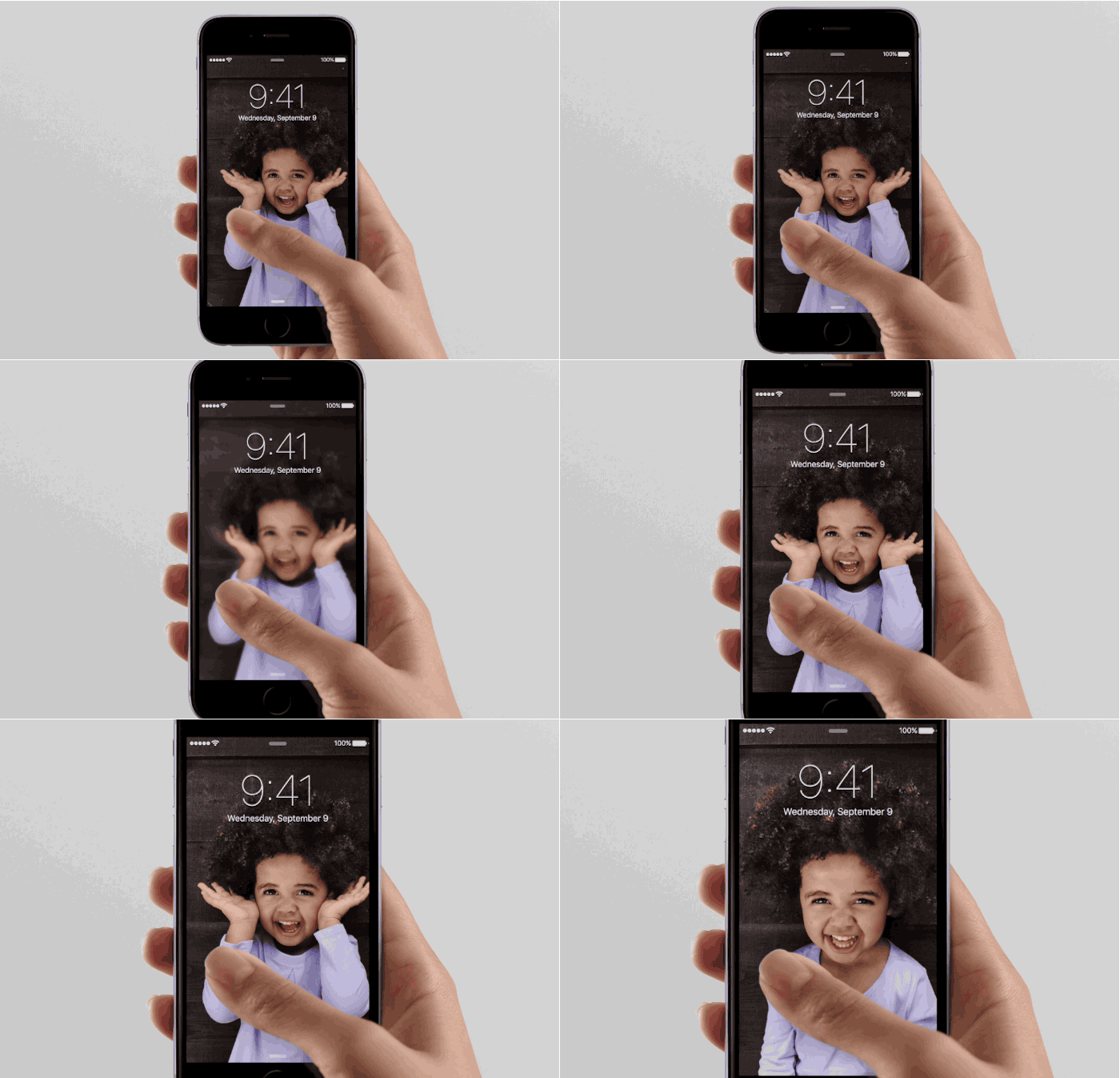
How to Disable or Enable Live Photos on iPhone 6s Camera


Live Photos are a notable camera feature of the new iPhone, which basically allow a typically still photo to transform into a short movie clip instead, with live action from a second before and after the picture was taken with the iPhone Camera. This is definitely an interesting feature of the new iPhone Cameras and it’s particularly well suited for taking pictures of people and animals, but not all users are interested in using the Live Photos ability. Additionally, since each Live Photo is basically a tiny movie clip, they take up more storage space than usual on the iPhone.

If you’d like to disable Live Photos ability on the iPhone, or turn it back on again, you’ll find it’s very easy to toggle the live action photography feature directly from the Camera app.

Turn Live Photos ON or OFF on iPhone Camera


  1. Open the Camera from either the iPhone lock screen or the Camera app
  2. From the Photo view, tap the little concentric circle icon near the top (or side) of the screen to toggle Live Photos ON or OFF, if it’s in yellow, the feature is on
  3. Take your pictures as usual

The Live Photo toggle works beyond just the current picture, meaning if you turn Live Photos off, all future pictures won’t use the Live Photo capture until it has been enabled again. Similarly, if Live Photos is turned into the On position, all pictures will capture live until it’s turned off again. This is quite useful, and in direct contrast to the HDR toggle, which turns itself off constantly regardless of how many times you turn it back on again.

Keep in mind that turning the Live Photo feature on or off again won’t have any impact on existing Live Photo images, whether in your photo library or used on the lock screen of your iPhone


(Above animated gif picture via CultOfMac)

Of course, at the moment you will need either the iPhone 6s and iPhone 6s Plus, as those are the only two devices which support the Live Photos feature on their cameras currently. With that said, you can expect this feature to stick around for future iPhone releases going forward.

3 Tips to Reduce High Cellular Data Usage on iPhone with iOS 9


While some users are having trouble with cellular data not working at all in iOS 9with certain apps, another set of iPhone users are experiencing the opposite problem, with excessive mobile data consumption after updating their iPhones to iOS 9. Given that most users don’t have unlimited data plans, heavy cellular data usage can lead to overage charges pretty quickly, but fortunately there are some easy adjustments that can be made to resolve the hungry mobile data appetite of iOS 9 on iPhones.

If you’re experiencing abnormally high cellular data usage after updating to iOS 9, making some changes as outlined below should remedy the problem.

1: Disable Wi-Fi Assist to Reduce Cellular Data Usage


Wi-Fi assist automatically uses cellular data when a wi-fi connection is poor, even if the iPhone is connected to a local wireless network. This is great in that your internet experience is more reliable, but it’s not so great in that it means you’ll undoubtedly be using more cellular data if you’re on a cruddy wi-fi network. The solution is to turn this off:
  1. Open the Settings app and go to “Cellular”
  2. Scroll all the way to the bottom and find “Wi-Fi Assist” and toggle that to the OFF position
Wi-Fi Assist alone has been attributed to unusually heavy cellular data usage with iOS 9, but it’s by no means the only culprit.


2: Turn Off iCloud Drive Cellular Data Use


iCloud Drive is a really great addition to iOS 9, but if you use it often and have a ton of files going back and forth, it can be fairly data hungry. Turning this off will help:
  1. Go to the Settings app and choose “iCloud”
  2. Go to “iCloud Drive” and toggle ‘Use Cellular Data’ to the OFF position

Turning this off just means you’ll need to connect to a wi-fi network to transmit files and data between the iPhone and iCloud Drive.

3: Disable Background App Refresh to Stop Background Cellular Data Usage


Background App Refresh is a feature that is theoretically useful in that it allows apps to update themselves in the background when not active, similar to how applications work on a desktop computer like OS X or Windows. But in practice, it often leads to excessive battery usage, and if the background apps tap into data, you’ll find they can be ravenous to cellular data plans too. Just turn this off:
  1. Open the Settings app and go to “General” followed by “Background App Refresh”
  2. Toggle the top switch to the OFF position (this will impact all the apps listed below, no need to change them individually)


Less data usage, and you may also discover your iPhone running iOS 9 to be performing faster and has better battery life too. Not exactly a bad trade-off!

Additional Tips for Cutting Down High Cellular Data Usage


You can go further if you want to really put your cellular data usage on a diet by making further adjustments:
  • Prevent certain apps from having cellular data access at all on the iPhone, useful if one or two particular apps are the identified data hog
  • Turn off cellular data on the iPhone completely if you’re really in a pinch and already over your mobile plan limit
  • Change the cellular data speed from LTE to 3G or 2G Edge to use less data by making things download slower on mobile, applying a speed limit of sorts (note there isn’t a data limit though, it’s just slower)
  • Turn off automatic app updates and downloads in iOS

All of these tips should really help to cut down on data usage if you’ve discovered it to be a bit excessive since updating to iOS 9.

How high the cellular data use is seems to vary per iPhone user, the networks they use, the apps they have, and what they do with their iPhone in general. For an example of higher cellular data use, here’s my own data plan from Saturday morning through Monday evening, where 1.3GB of data was consumed doing nothing unusual, just normal stuff on the iPhone 6S. But, because of the Wi-Fi Assist feature, a good amount of that 1.3GB of data was offloaded onto the cellular connection when the wi-fi connection was less capable.


That’s pretty heavy for usage for just under a four day period, and for users with a normal cellular plan they could quickly eat through their allotment. Of course, if you still have a coveted and ancient unlimited data plan like I do, you may not care about any of this, so let your iPhone eat data like there’s no tomorrow if you want. But for most users with metered data plans, making some changes can avoid overage charges and unexpected cell phone bills.